Understanding systemd: The Modern Linux Service Manager
Mastering systemd: The Essential Linux Service and Init Manager
Introduction to System Management
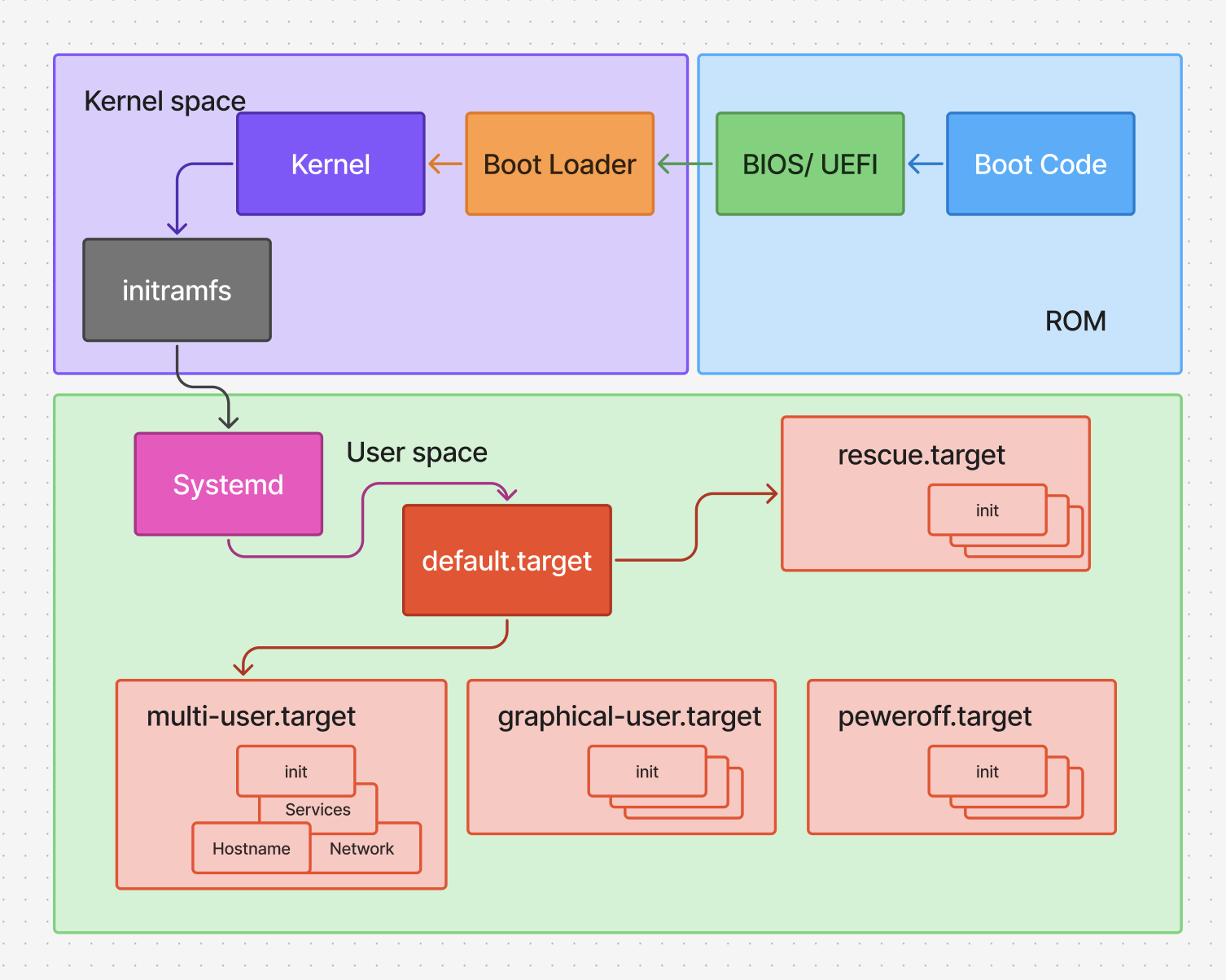
Kernel Processes vs. User Space Daemons
Linux systems manage two types of processes:
Spontaneous Processes (Kernel-space):
- Created autonomously by the kernel
- Don't necessarily correspond to filesystem programs
- Not user-configurable
- Low PID numbers
- Displayed with brackets in
psoutput
Init Responsibilities (User-space):
- System hostname configuration
- Time zone setting
- Disk checking with fsck
- Filesystem mounting
- Temporary file cleanup (/tmp)
- Network interface configuration
- Firewall/packet filter setup
- Daemon and service management
Understanding systemd Architecture
systemd provides a comprehensive system management solution with:
- Dependency-based service management
- Parallel process initialization
- Target-based operation (replacing runlevels)
- Integrated logging (journald)
- Login session management (logind)
- Network connection management
The Philosophy Debate
Traditional Unix Philosophy:
- Small, simple, modular components
- Single-purpose utilities
systemd Approach:
- Integrated, monolithic control system
- Unified configuration and management
- Potential concerns about complexity and security
- Imposes new requirements on the Linux kernel
Core systemd Concepts: Units and Unit Files
systemd manages resources through Units defined by unit files.
Unit Types
.service: System services (e.g.,sshd.service).socket: Inter-process communication sockets.device: Kernel-recognized device files.mount&.automount: Filesystem mount points.swap: Swap file configuration.target: Unit groups (replacement for runlevels).timer: Scheduled tasks (cron alternative)
Unit File Locations
Configuration is loaded from these directories (in order of precedence):
/etc/systemd/system/(Local administrator configuration)/run/systemd/system/(Runtime units)/usr/lib/systemd/system/or/lib/systemd/system/(Default installed units)
Practical systemctl Command Guide
Service Management
# Enable a service (creates symbolic link)
systemctl enable ssh
# Result: /etc/systemd/system/multi-user.target.wants/sshd.service →
#         /usr/lib/systemd/system/sshd.service

# Check service status
systemctl status nginx.service

# Control service state
sudo systemctl start nginx
sudo systemctl stop nginx
sudo systemctl restart nginx
sudo systemctl reload nginx  # Reload without connection drops

# Configure boot behavior
sudo systemctl enable nginx   # Start at boot
sudo systemctl disable nginx  # Don't start at boot
Service Masking
Masking completely prevents service activation:
sudo systemctl mask nginx.service    # Block service
sudo systemctl unmask nginx.service  # Remove block
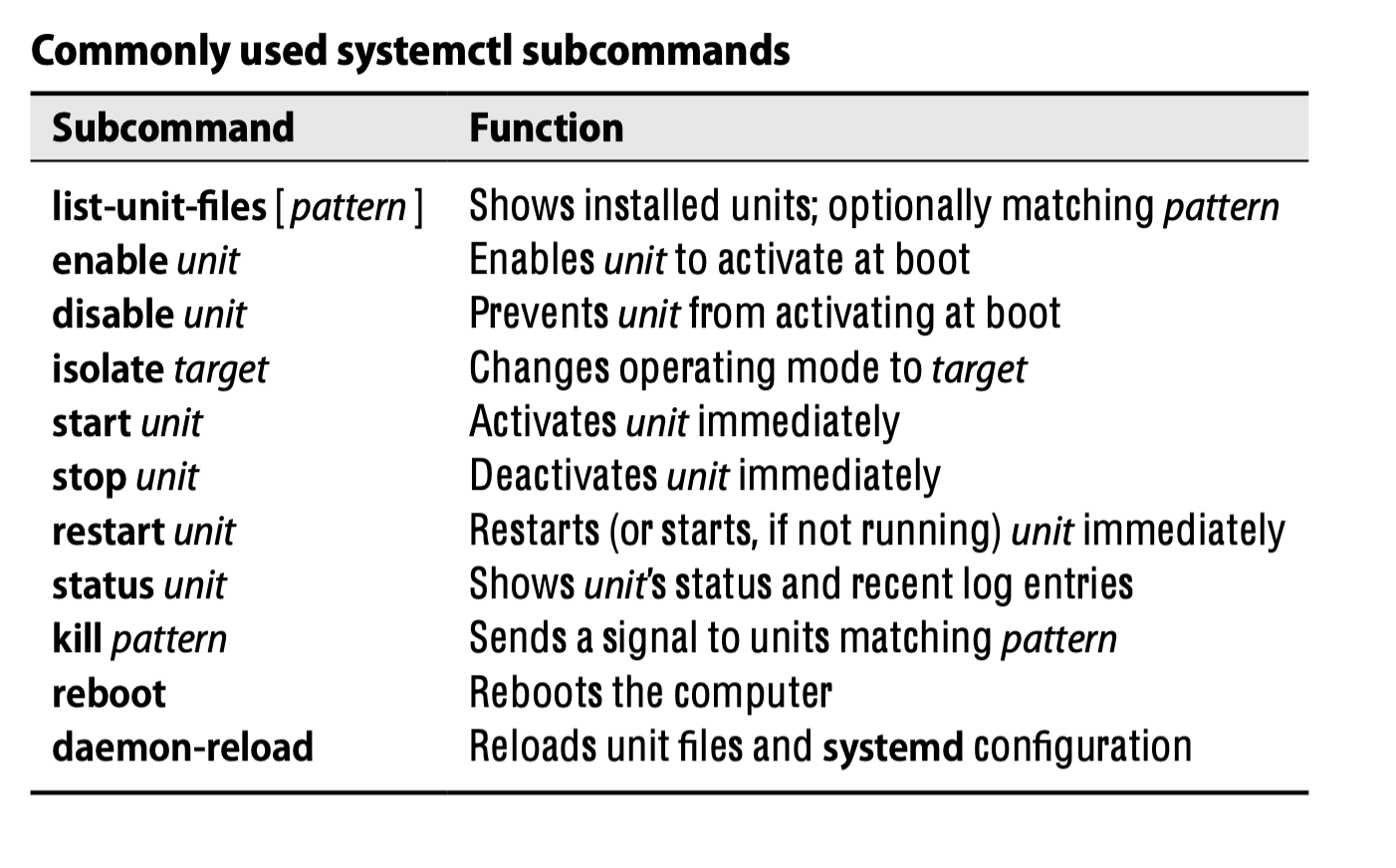
System State Inspection
systemctl list-units                 # Active units
systemctl list-unit-files            # All available units
systemctl list-units --type=service  # Service units only
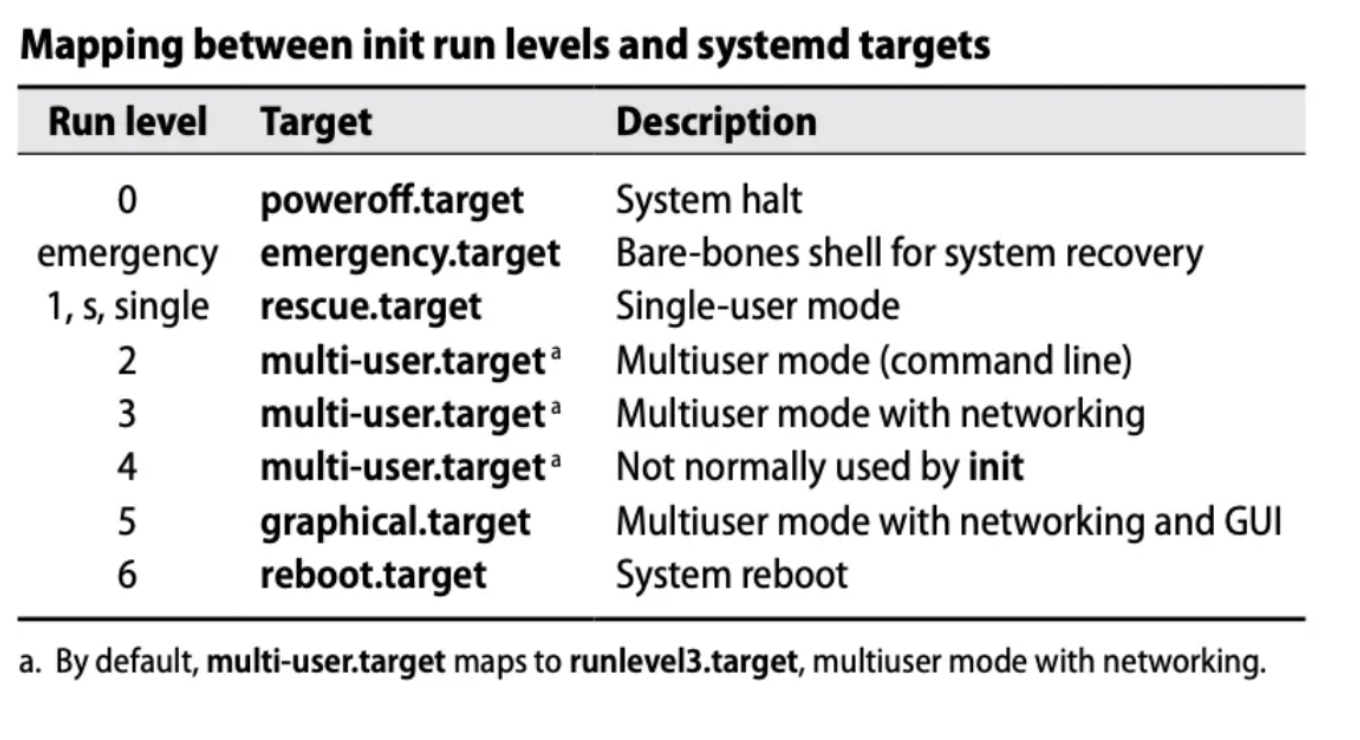
Target Management (Runlevels)
systemctl get-default                 				# Show default target
sudo systemctl set-default multi-user.target  # Set default target
sudo systemctl isolate graphical.target       # Change to graphical mode
telinit 4                            			 		# Traditional syntax (equivalent)
Static Units
Static units lack installation configuration and cannot be enabled/disabled:
systemctl start static-unit.service # Manually activate
Advanced Configuration: Overrides
Never modify default unit files directly. Use overrides instead:
# Create override directory
sudo mkdir -p /etc/systemd/system/nginx.service.d/

# Create override configuration
sudo vim /etc/systemd/system/nginx.service.d/override.conf
Add custom configuration:
[Service]
ExecStart=
ExecStart=/usr/sbin/nginx -c /usr/local/www/nginx.conf -g 'daemon off;'
Apply changes:
sudo systemctl daemon-reload    # Reload configuration
sudo systemctl restart nginx    # Restart service
System Logging with journalctl
Basic Log Viewing
journalctl -f                  # Follow journal in real-time
journalctl -u nginx           # View nginx service logs
journalctl -b -1              # Previous boot logs
journalctl --list-boots       # Show available boot records
Persistent Journal Configuration
Enable persistent logging across reboots:
# Method 1: Create journal directory
sudo mkdir -p /var/log/journal
sudo systemctl restart systemd-journald

# Method 2: Edit configuration
sudo vim /etc/systemd/journald.conf
Set persistent storage:
[Journal]
Storage=persistent
Conclusion
systemd has become the foundational system management framework for modern Linux distributions. Mastering systemctl and journalctl is essential for effective system administration. Begin by exploring the units on your system, practice creating service overrides, and utilize journalctl for debugging - these skills will significantly enhance your Linux management capabilities.